

Configure DeepSeek in DSH
Create a DeepSeek API key, save it under Settings → Models, select a model from the live picker and verify the connection with a read-only request.
On this page
This guide works for DSH Desktop and the local Web UI. Desktop users can stay inside the app. CLI users should keep the dsh web / npx @deepseek-ai/dsh web process running while they configure the model.
Before you start: separate DSH setup from API access
Installing DSH does not create a DeepSeek API account and does not include API credits. You need a DeepSeek API key with access to the model you intend to use.

Do not put a real API key in screenshots, repositories, prompts or public support messages.
If DSH itself will not open, fix startup first. If DSH opens but the model request fails, continue here.

Create or copy a DeepSeek API key
Open DeepSeek API Keys, sign in and create or copy a key.

Open Settings → Models → DeepSeek
Use the built-in DeepSeek provider card for the official DeepSeek API. Do not create a custom provider just to change the model name.
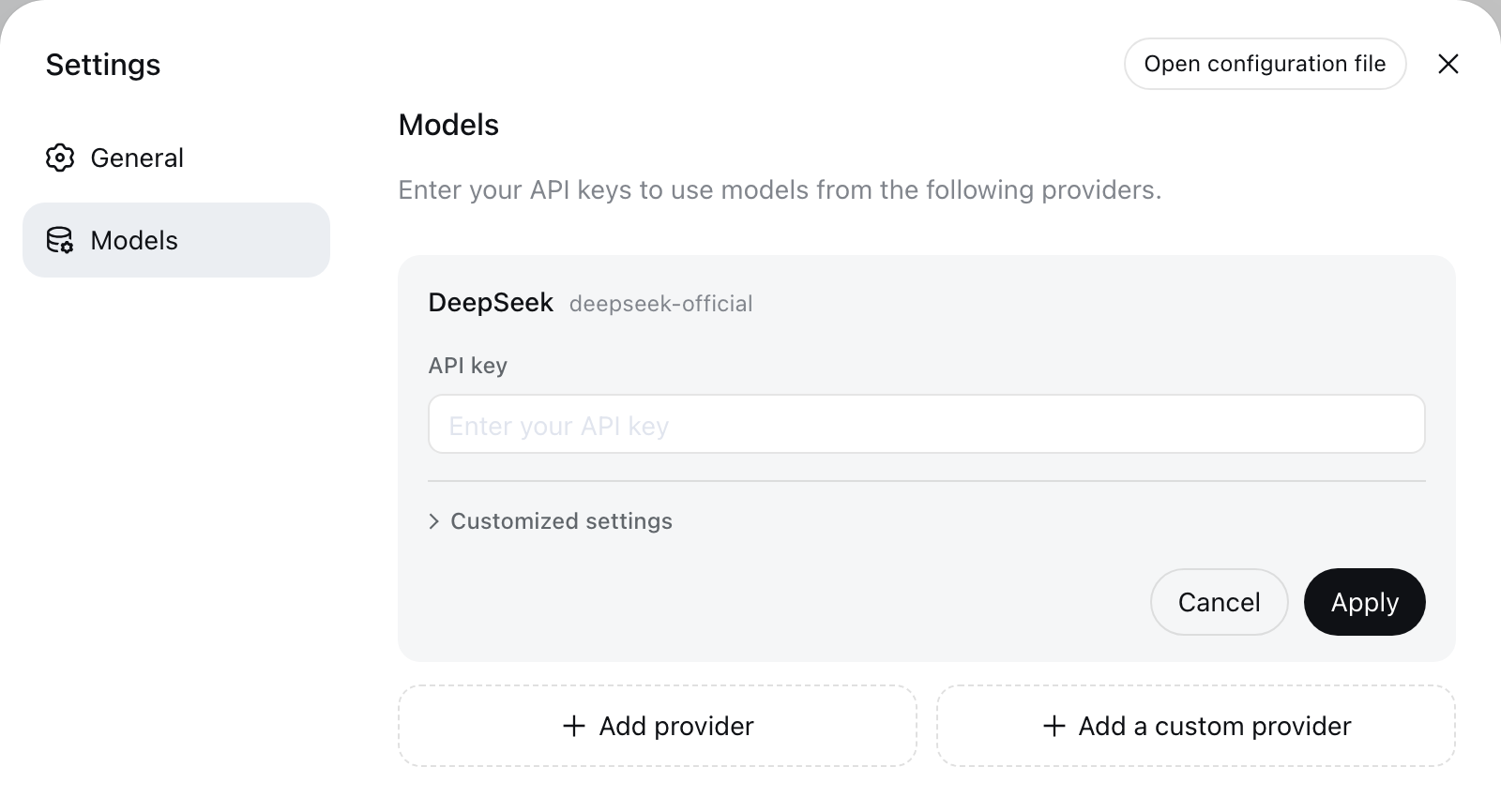
Paste the key and save it
Paste the credential into the DeepSeek provider card and save. DSH stores managed credentials separately from normal settings and returns a redacted descriptor to the UI instead of exposing the literal secret.
Provider configuration changes apply to the next request. If you are validating a different model or provider in an existing conversation, start a fresh session so the comparison does not mix in the model already recorded for that session.
Select a model from the live picker
Open the model picker and select a model that appears under the configured DeepSeek provider. Do not copy an old model ID from a tutorial when the live picker shows a different current catalog.
If the picker is empty, first confirm that the credential saved successfully and that the account or provider currently exposes models to DSH.
Verify the connection before editing files
Choose an empty test workspace, start a new session and send a read-only request:
The model replies, the expected provider/model is selected and the workspace path matches your test folder. No MISSING_CREDENTIAL, UNKNOWN_MODEL or authentication error appears.
Use a custom provider only for a custom endpoint
Create a custom provider for a company gateway, self-hosted endpoint or service that is not available through the installed provider catalog. A custom provider needs the correct protocol, base URL, credential and model IDs; changing only the model name does not add protocol or authentication support.
Open the custom-provider guide →Advanced provider checks
Use these checks for a custom gateway, a model-discovery problem or a credential that appears to save but does not work on the next request.
Where does DSH store the credential?
The official provider guide documents managed credentials in $DSH_HOME/.credentials.yaml. When you save in Settings, DSH stores a reference to the credential, so the raw API key should not reappear in the interface or in a normal settings file.
What do Provider ID and apiKeyEnv mean?
Provider ID is the stable identifier for a provider. In custom YAML, apiKeyEnv names an environment variable; it is not the API key itself. DSH must inherit that variable when it starts.
Why can fetching models fail while chat still works?
Model discovery commonly calls GET /models. Some OpenAI-compatible gateways expose a chat endpoint without exposing model discovery. Confirm the base URL and credential, then enter the model ID manually only when the provider documentation supports it.
How should custom model image input be treated?
Manually added models are text-only by default unless the configuration explicitly declares image input and the endpoint actually supports it. Declaring a capability does not add support to the model.
Use the exact failure signal
DeepSeek Harness provider guide · official repository · DeepSeek API Keys.