

Connect a Custom Provider to DSH
Use this when the model service you need is not already in DSH's provider catalog. Start in the Web UI, then touch YAML only for settings the form cannot express.
On this page
A custom provider is for a company gateway, self-hosted endpoint or service missing from the installed catalog. If DSH already lists the provider, its catalog entry is simpler and carries the expected endpoint, protocol and model metadata.
When a custom provider is the right tool
Company gateway
Your organization exposes an OpenAI-compatible URL instead of letting clients call the upstream provider directly.
Self-hosted endpoint
You run a compatible model server on your own infrastructure and need DSH to call its base URL.
Provider not in the catalog
The service is not listed under Add provider, so you need to define the protocol, credential and models yourself.
Create the provider in Settings → Models
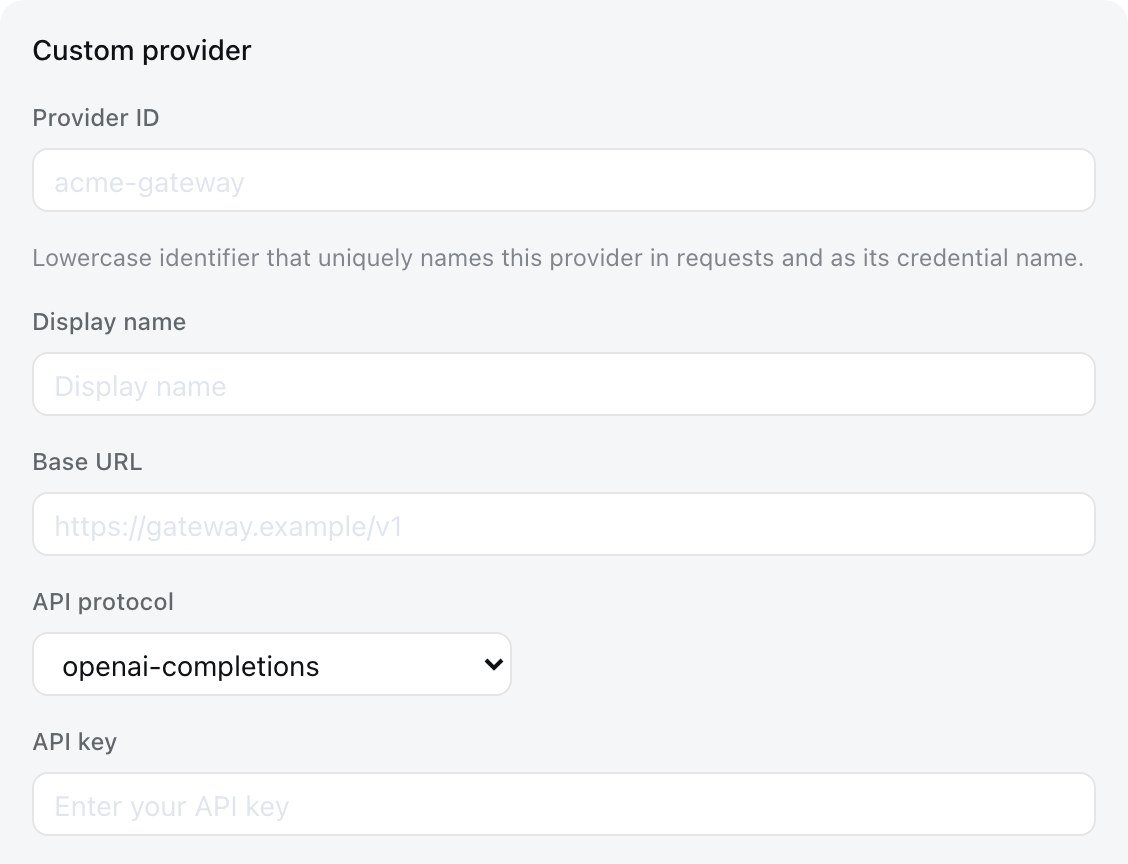
Open Settings → Models → Add a custom provider. Enter a lowercase Provider ID, display name, base URL, API protocol and at least one model.
The ID is permanent because saved sessions, defaults, requests and credential references use it. Renaming means creating a new provider and deleting the old one.
Add the credential
The simplest path is to enter the credential in the Web UI and save it. DSH keeps managed credentials separately from normal settings and returns only a redacted descriptor to the browser.
apiKeyEnv is the name of an environment variable, not the secret itself. The variable must exist in the environment from which DSH starts; restart DSH after adding or changing it.
apiKeyEnv: GATEWAY_API_KEYAdd or discover models
Use Fetch available models if the endpoint exposes an OpenAI-compatible GET /models. The request uses the base URL and credential currently shown in the form.
If chat works but discovery does not, the endpoint may simply omit GET /models. Confirm the model ID with the gateway owner and enter it manually instead of repeatedly changing a working API key.
Set reasoning levels for each custom API model in the UI
For a model you entered under Custom model API, you can now configure reasoning levels without editing the YAML file. Open Settings → Models, edit the provider, expand Customized settings → Model options for that model, and turn on Reasoning levels.
- 01
Choose the levels
The editor starts with
off,low,mediumandhigh. Keep only levels that the endpoint supports, and keep at least one level other thanoff. - 02
Set the API value
Each row maps a DSH level to the value sent to the provider. The value starts with the level name; change it only when the provider uses another spelling, such as
xhigh. - 03
Save and select the level
Save the model settings, start a new session, choose the model and select its reasoning level from the model picker.
Built-in catalog models keep the reasoning levels supplied by their provider catalog. The new UI applies to hand-entered models on a custom model API provider; it does not make an endpoint support reasoning that it does not implement.
Save, select the model and test one request
Save the provider, choose one of its models in the model picker, start a fresh test session and send a read-only prompt first.
Reply with “custom provider connected”. Do not edit files or run commands.Provider changes take effect on the next request; a server restart is not normally required. A session that already sent a request keeps the model recorded in that session log, so use a new session when validating a model change.
When the key and URL are correct but every request still fails
“OpenAI-compatible” does not guarantee every request field is accepted. DSH's pi-ai route may send a reasoning model's system prompt using the developer role and may use max_completion_tokens. Some gateways only accept system and max_tokens.
llm-pi-ai:
  providers:
    my-gateway:
      apiKeyEnv: GATEWAY_API_KEY
      api: openai-completions
      baseURL: https://gateway.example/v1
      compat:
        supportsDeveloperRole: false
        maxTokensField: max_tokens
      models:
- id: my-modelEdit $DSH_HOME/settings.yaml only after you have confirmed the credential, base URL and model ID. Do not add compatibility switches at random: each switch changes the request DSH sends.
Image input is an explicit claim
A manually entered model is treated as text-only unless its configuration says it accepts images. If the endpoint really supports vision, add input: [text, image] to that model in $DSH_HOME/settings.yaml.
Marking a model as image-capable only tells DSH to allow the attachment. If the server does not actually support images, the provider will reject the request.
Common custom-provider failures
MISSING_CREDENTIAL
Save the provider credential in Settings → Models or make sure the environment variable named by apiKeyEnv existed when DSH started.
UNKNOWN_MODEL
Select a configured model or add the missing model ID to the custom provider.
Fetch available models returns 401
Check the credential used by the discovery request. If the endpoint does not expose GET /models, enter the model manually.
Only reasoning models fail
The gateway may reject the developer role. Check the official compatibility settings before changing credentials or model IDs.
The page says Select model after a provider was deleted
The saved default may still point to the deleted Provider ID. Select another configured model.
DeepSeek Harness model and provider guide, v0.2.1-alpha.4 release notes. The guide's generated configuration catalog is the authoritative list of compatibility fields accepted by the installed adapter; the release notes document the UI path for per-model reasoning levels.