

Install DeepSeek Harness on Linux
Install a compatible Node.js release, start the DSH Web UI, configure a model and verify an empty test folder.
On this page
Install a supported Node.js release, run the DSH Web UI locally, configure a model and select an empty test folder.
Before you start: This guide targets a local Linux machine running Bash or Zsh; the browser and DSH should be on the same machine for the first setup. Have internet access and an API key for your model provider ready.
Success criteria: DSH opens, the model picker shows an available model, and one read-only task reports the expected dsh-test workspace without an error.
Installing DSH does not include model API credits.

Install a compatible Node.js release
Use your existing Node.js installation if it is compatible; otherwise install a supported release with nvm or your distribution's preferred Node.js method.
For a fresh installation, use the official Node.js downloads page or your distribution's supported package source.
Check the version before installing anything else:
node --versionnpm --versionUpstream currently declares ^22.19.0 || >=24.0.0. This guide recommends ^22.19.0 || >=24.2.0 because released DSH packages have a known silent-exit regression when used with Node 24.0/24.1.
Both commands print versions and Node is inside the recommended range.

Start the DSH Web UI
Open your normal shell as a regular user. On many desktop distributions, Ctrl + Alt + T opens a terminal.
npx @deepseek-ai/dsh webKeep this terminal running. Open the local address printed by DSH; the default is http://127.0.0.1:3080.
The DSH Web UI opens in your browser without a startup error in the terminal.

Configure a model provider
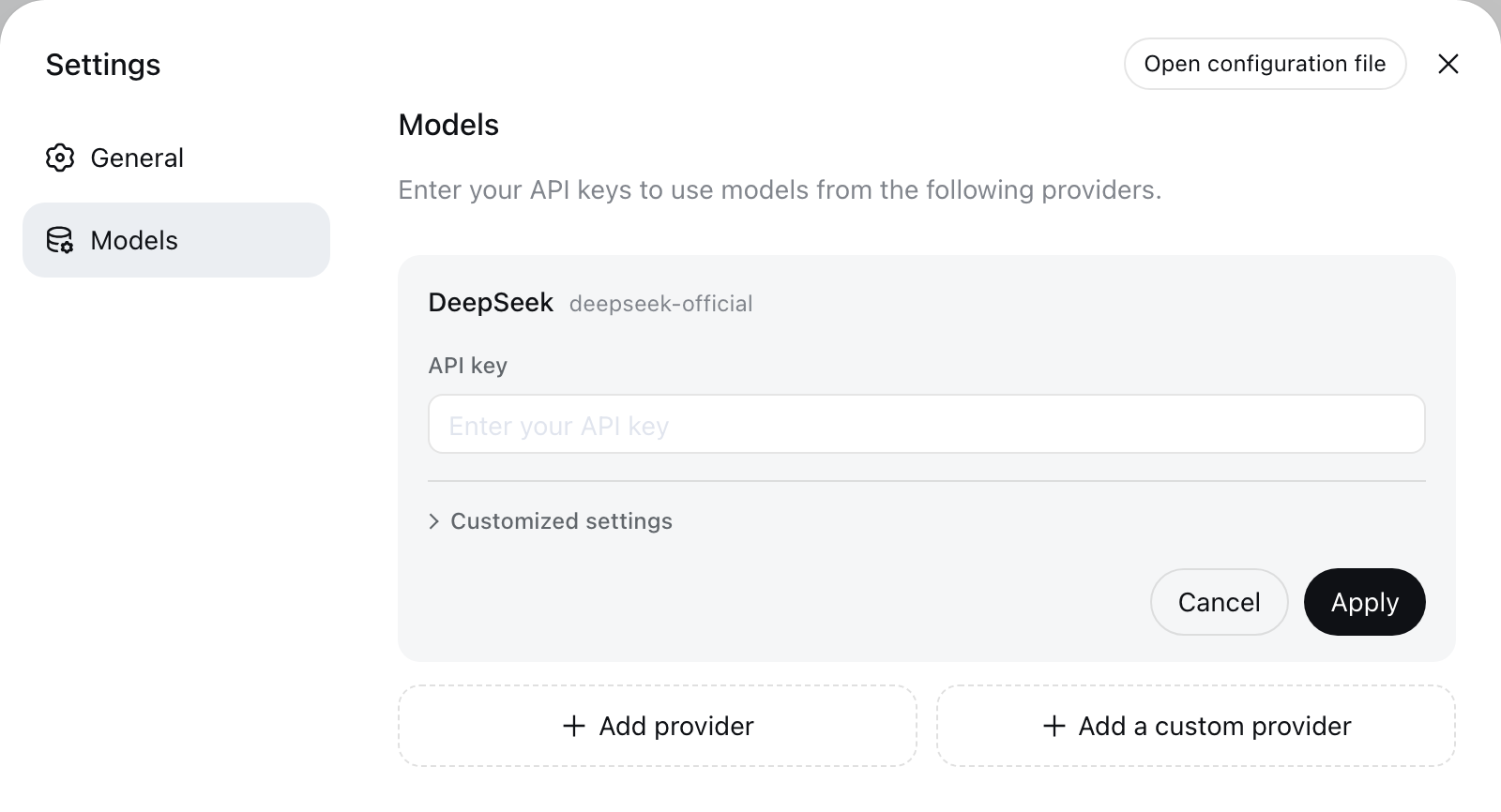
If you use the official DeepSeek API, create a key at DeepSeek API Keys. In DSH, open Settings → Models → DeepSeek, paste the key and save it.
The model picker lets you select a model from the configured provider.

Choose an empty test folder
Create a folder named dsh-test, then choose it with Choose workspace. Do not start with a production repository or a folder that contains secrets.
mkdir -p ~/dsh-testThe selected workspace is ~/dsh-test or the equivalent dsh-test folder you created.

Verify the setup with one read-only task
Send this prompt:
① the model replies; ② the reported workspace is your dsh-test folder; ③ the file list matches what is on disk; ④ no error is shown.
If something fails, find the matching symptom
nvm, node or npm is not found
Open a new shell or reload your shell profile. If the commands still fail, return to the Node.js installation step.
npm reports an unsupported Node engine
Run node --version. Upstream declares ^22.19.0 || >=24.0.0; this guide recommends ^22.19.0 || >=24.2.0 because released DSH packages have a known silent-exit regression when used with Node 24.0/24.1.
npx looks stuck on first launch
The first run may be downloading the package. If npm asks to install @deepseek-ai/dsh, confirm the package name before accepting.
EADDRINUSE on port 3080
Run lsof -nP -iTCP:3080 -sTCP:LISTEN, stop the stale process, or launch DSH with --port 13080.
127.0.0.1:3080 does not open
Confirm the DSH process is still running. This guide assumes the browser and DSH run on the same machine; a remote server needs a separate access plan.
MISSING_CREDENTIAL
Open Settings → Models and save the provider credential again.
Permission denied in the workspace
Use a test folder owned by your normal user instead of a system directory.
Other installation paths
Optional: use DSH from a chat platform
Do this only after the local setup works. Pick one platform you already use; you do not need to configure all of them.
Telegram
Use a Telegram bot as a remote entry point for DSH tasks.
- Connection
- Create a bot with BotFather → add the token
Discord
Use DSH from an existing Discord server or channel.
- Connection
- Create a Discord bot → add the token and permissions
Connect the community dsh-im route through an iLink QR code.
- Connection
- Scan the iLink QR code
Start with a linked-device flow and test in your own chat.
- Connection
- Link a WhatsApp Web device
Feishu / Lark
Use DSH in direct messages or team channels.
- Connection
- Scan to create, or add App ID / App Secret
Official Desktop documentation · Desktop downloads. The CLI supports Node ^22.19.0 || >=24.0.0; use ^22.19.0 || >=24.2.0 to avoid the reported Node 24.0/24.1 silent-exit issue.