
Use DeepSeek Harness on Your Phone: Beginner Guide
Zero-jargon beginner guide to using DeepSeek Harness on your phone: find your computer IP, connect over home Wi-Fi in 2 minutes, or use Tailscale on 4G/5G.
On this page
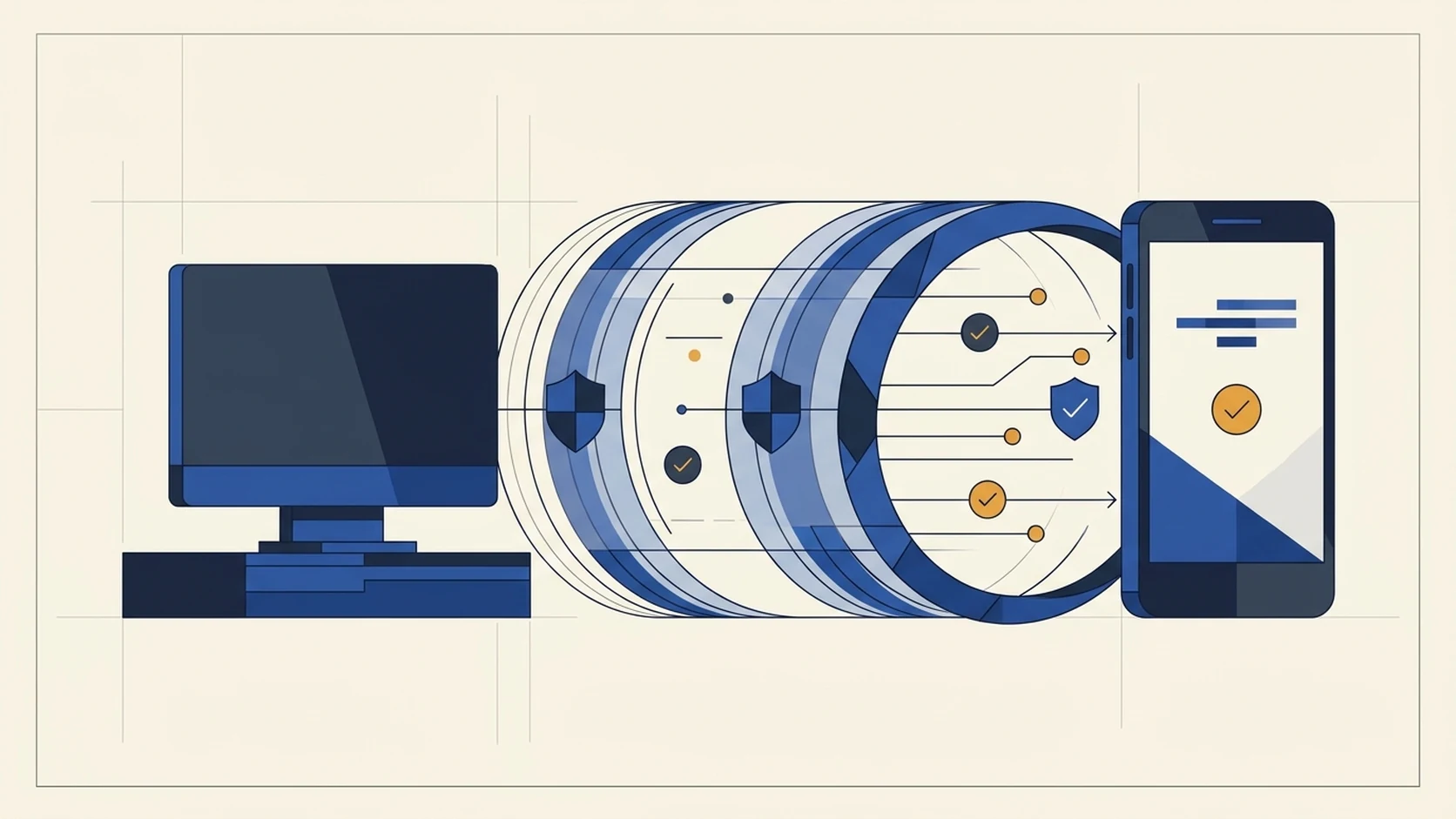
If you searched the App Store or Google Play for DeepSeek Harness and only found the regular DeepSeek chat app, you did nothing wrong. Before installing anything, three plain facts explain how phone access actually works:
- There is no standalone DSH mobile app in app stores: The DeepSeek app in mobile stores is just regular cloud chat and cannot see the folders on your computer. DeepSeek Harness (DSH) itself runs on your computer.
- Think of your computer as the TV and your phone as the remote: Your computer runs DSH on your desk, while your phone browser opens its control screen. Starting in v0.2.2-rc.1, the official DSH web interface adapts cleanly to small phone screens so you can check progress, send instructions, and approve actions from the couch or train.
- You can also text DSH from a chat app: If you prefer messaging over opening a browser, community plugins let you talk to DSH through Telegram, Discord, Feishu, or WeChat.
One quick check before starting: Make sure Node.js (24.9+) and DSH already work on your computer. Brand new to DSH? Finish our 5-minute computer installation tutorial first, then come right back here.
Compare the 4 phone options: which one should a beginner pick?
You only need one of these four methods. Pick the row that matches where you want to use your phone:
| Connection Option | Setup Time | Works Away from Home (4G/5G)? | Extra Apps Needed? | Best For |
|---|---|---|---|---|
| Method 1: Home Wi-Fi browser link | 2 minutes | No (same home router only) | None at all | Checking your computer's progress from the couch or another room |
| Method 2: Tailscale private connection | 5 minutes | Yes (works anywhere on cellular) | Free Tailscale app on computer + phone | Commuting, working from an office, or traveling away from home |
| Method 3: Telegram / Discord / Feishu / WeChat | 10 minutes | Yes | Community chat plugin in DSH | Sending quick text checks without opening a phone browser |
| Method 4: Community mobile plugins / Android APK | 15 minutes | Varies | Third-party open-source add-on | Experienced users comfortable reviewing third-party code |
Best path for first-timers: Spend two minutes on Method 1 at home first so you see how DSH looks on your phone. Once that works, add Method 2 in five minutes if you want access outside the house.
Method 1: Connect at home over Wi-Fi (no extra apps, 2 minutes)
Normally, DSH locks its web page (127.0.0.1) so only your computer screen can open it. By telling DSH your computer's local home Wi-Fi address when starting up, your phone on the same router can open the page right away.
Step 1: Look up your computer's home Wi-Fi IP address (no commands needed)
First, check two things: your phone and computer must be connected to the exact same home Wi-Fi name, and if you have a VPN app turned on your computer, pause it for now.
Now find your computer's local Wi-Fi number right in system settings:
- On Windows: Click
Start -> Settings -> Network & internet -> Wi-Fi, click the Wi-Fi network you are connected to, and scroll down to IPv4 address. Write down that number starting with192.168.or10.(for example,192.168.1.25). - On Mac: Click the Apple menu in the top-left corner ->
System Settings -> Wi-Fi, click theDetails...button next to your connected Wi-Fi, and copy the IP Address shown there (for example,192.168.1.25).
(Prefer typing a command instead? Run ipconfig in Windows PowerShell, ipconfig getifaddr en0 in Mac Terminal, or hostname -I on Linux.)
Step 2: Open your computer's command window and start DSH
Open the built-in command window on your computer:
- On Windows: Press the
Winkey on your keyboard, typePowerShell, and click the blue Windows PowerShell app. - On Mac: Hold
Command + Space, typeTerminal, and press Enter.
Copy the command below, replace 192.168.1.25 with the number you wrote down in Step 1, paste it into the window, and press Enter (full flag details are in the official DSH CLI guide):
npx @deepseek-ai/dsh web --host 192.168.1.25 --no-open(If Windows pops up a Firewall prompt asking for permission, check Private networks and click Allow access.)
Wait a few seconds until the window prints a long web link ending with ?token=..., looking like this:
http://192.168.1.25:3080/?token=xxxx...Important beginner rule: Keep this command window open on your computer! You can minimize it, yet clicking X to close the window immediately shuts down DSH and disconnects your phone.
Step 3: Send the ENTIRE long link to your phone and pin it to your home screen
Highlight and copy that entire link including the ?token=... ending, send it to your phone (via AirDrop, email to yourself, or a private note), and open it in Safari (iPhone) or Chrome (Android).
- Do not type the short number by hand: Typing bare
192.168.1.25:3080without the?token=...passkey at the end will get blocked as unauthorized. Once you open the full link one time, your phone browser saves your login automatically. - Is the message box at the bottom grayed out? Tap
Choose workspaceon the screen to pick a folder on your computer, then pick a model from the model dropdown, and the message box will unlock right away.
Make it open full-screen like a real phone app:
- iPhone (in Safari): Tap the Share button at the bottom center (square with an upward arrow), scroll down, and tap
Add to Home Screen. - Android (in Chrome): Tap the three-dot menu in the top-right corner and tap
Add to Home screen.
You now have a dedicated DSH icon right on your phone's home screen.
Safety rule: Only use this 192.168 method on your own private home Wi-Fi. Never run it on coffee shop, airport, or hotel Wi-Fi, and never share screenshots showing your ?token= link.
Method 2: Connect from anywhere on 4G/5G in 5 minutes (easy Tailscale setup)
As soon as you leave home and switch to mobile data, 192.168 addresses stop working. Do not mess with router port forwarding—it is complicated and unsafe for beginners.
Instead, use a free personal app called Tailscale. Think of Tailscale as an invisible, private encrypted cable connecting just your phone and your home computer so nobody else on the internet can see it.
Follow these three simple steps—no domain setup needed:
Step 1: Install Tailscale on your computer and phone, and sign in to the same account
- Download and install Tailscale on your computer from Tailscale's website, and install the Tailscale app from the App Store or Google Play on your phone.
- Sign in on both devices using the exact same Google, Microsoft, Apple, or GitHub login, and flip the switch to Connected (tap Allow if your phone asks to add a VPN configuration).
Step 2: Click the Tailscale icon on your computer to copy its 100. address
Look at the top-right menu bar on Mac or the bottom-right system tray on Windows and click the small Tailscale icon.
Next to your computer's name, you will see a number starting with 100. (such as 100.88.12.34). Click it to copy that address.
Step 3: Start DSH using that 100. address
Just like Method 1, open your computer's command window, replace 100.88.12.34 below with your own 100. number, and press Enter:
npx @deepseek-ai/dsh web --host 100.88.12.34 --no-openSend the full printed http://100.88.12.34:3080/?token=... link to your phone and open it in Safari or Chrome. Because Tailscale encrypts everything between your two devices automatically, you can now turn off Wi-Fi on your phone and control your home DSH safely over 4G or 5G from anywhere!
(Optional note for advanced users: if you set up a custom .ts.net HTTPS domain via tailscale serve --bg 3080 or a reverse proxy instead of using the 100. IP directly, follow the official reverse-proxy security guide and add --public-url https://your-domain/ --trusted-host your-domain so DSH does not block domain requests with a 403 error.)
Check laptop sleep before leaving home: Closing a laptop lid puts your computer to sleep and cuts off your phone connection! Before heading out, plug your computer into wall power and set Put computer to sleep when plugged in to Never in your power settings.
Method 3: Text DSH from Telegram, Discord, Feishu, or WeChat
Do not feel like opening a mobile web page just to ask "Did the task finish?" You can link your computer's DSH to a chat app instead using our step-by-step guides:
Bonus tip: if you like jotting down ideas in the regular DeepSeek chat app on your phone while commuting, v0.2.2-rc.3 added an experimental DeepSeek Chat Import feature (deepseek-chat-import) that pulls your mobile chat history straight into DSH back on your computer.
Should beginners install third-party "DSH mobile" apps from GitHub?
While browsing forums or GitHub, you might run across community-built mobile add-ons such as dsh-pwa (Discussion #8004), dsh-mobile-remote (Discussion #2520), or the community Android client deepseek-harness-mobile.
Plain advice for beginners: All of those are unofficial hobby projects made by community members, not by the DeepSeek team. Stick with the official browser method above—it requires zero third-party installers and stays up to date automatically. If you ever test community plugins later on, review our plugin safety checklist first.
Troubleshooting table when your phone cannot connect
Match what you see on your screen to the quick fix on the right:
| What Happened | Why It Happened | Quick Fix |
|---|---|---|
Computer says 'npx' is not recognized or command not found | Node.js is not installed on your computer yet | Install Node.js 24.9+ using our computer setup tutorial, reopen the command window, and try again |
| Phone browser spins and says This site can't be reached | Command window was closed, wrong Wi-Fi, VPN is on, or firewall blocked it | Confirm the computer command window is still open, pause computer VPNs, verify same Wi-Fi, or confirm Tailscale says Connected on both devices |
| Phone says Unauthorized or Access denied | You typed the short IP number without the ?token=... passkey | Copy the entire ?token=... link from the computer window and open that full link once |
Page loads its frame, then shows 403 errors | Opened via a domain name without telling DSH to trust that domain | Either use the 100. Tailscale number above, or add --trusted-host your-domain (domain only, no https://) |
| Page opens fine, yet the chat input box is grayed out | No project folder or AI model is selected yet | Tap Choose workspace to pick a folder and choose a model from the dropdown |
Common questions
Can I turn off my home computer and still run DSH on my phone?
No. Your computer does the actual file reading and coding work while your phone acts as the remote screen. If you want 24/7 phone access without leaving a laptop awake at home, you can rent an inexpensive $5/month Linux cloud server, run DSH there, and connect from your phone using Method 2 (Tailscale).
Any safety tips before tapping "Approve" on a small phone screen?
Long folder names and terminal commands get shortened with ... on narrow phone screens. Practice inside an empty dsh-test folder on your Desktop first, and always tap to expand the full file path before approving file changes or terminal commands while away from your desk.
How do I turn off phone access completely when I am finished?
Go back to the command window on your computer and press Ctrl + C (or simply close that command window). Phone access stops immediately.
Model and workflow guides
Gemini 4 Neon is here. When is it worth switching models?
Compare Gemini 4 Neon in two coding setups, work through a $0.45 API example, and find Neon in Gemini, Google AI Studio, and Antigravity.
Read →Models and costsGPT-6.2 Astra & Sol Guide: Specs, Pricing & Choice
Beginner guide to OpenAI's GPT-6.2 Astra and Sol: Claude vs DeepSeek price table, plain-English benchmarks, 272K cliff, and step-by-step DSH & Python setup.
Read →Models and costsGPT-6.1 Terra Guide: Uses, Pricing and Sol Comparison
Beginner guide to OpenAI's GPT-6.1 Terra: half-price visual, computer-use, and writing model compared with Sol and DeepSeek, plus DSH and Python setup steps.
Read →Model setup and costsConnect Local Qwen 3.8 27B to DSH
Beginner guide to connecting local Qwen 3.8 27B to DSH: GPU memory table, LM Studio / Ollama / llama.cpp port setup, exact 5-field config, and error fixes.
Read →Model setup and costsCodex Costs: API Billing vs Subscription Usage
Beginner guide to OpenAI Codex costs: ChatGPT Plus login vs API-key billing table, real per-prompt dollar math, and 3 steps to lock a monthly budget cap.
Read →Model setup and costsConnect Grok API to DSH: Setup & Tools
Step-by-step beginner guide to connecting xAI's Grok API (grok-4.7) to DSH: Grok vs Groq comparison, exact 5-field custom provider setup, and 401/404 fixes.
Read →Model setup and costsChoose a Gemini Model by Task and Cost
Beginner guide to Google Gemini model selection: compare 3.8 Flash, 4 Argon, and DeepSeek prices, watch 2027 rate changes, and set up DSH in 4 simple steps.
Read →Model benchmarks and engineeringGemini 4 Argon Coding Benchmarks & 1M Window
Beginner guide to Google's Gemini 4 Argon coding scores vs Claude and GPT, how its shared 1M window and 65K output cap work, plus 4-step DSH setup.
Read →API costs and enterprise ROIGemini 4 Argon API Pricing, Cache & ROI Guide
Beginner guide to Gemini 4 Argon API pricing: Dec 2026 2x rate jump, how 95% auto-caching and thinking tokens bill, DeepSeek cost comparison, and calculator.
Read →Model setup and costsClaude Sonnet vs Opus: Which Should You Use?
Beginner guide to Claude Sonnet 5.5 vs Opus 5.5: side-by-side API prices, per-prompt cost math, clear rules on when to upgrade, and 4-step DSH setup.
Read →Models and costsOpus 5.5 vs Fable 5.2: Which Model Is Right for You?
Beginner guide to Claude Opus 5.5 vs Fable 5.2: side-by-side API prices, coding benchmarks, per-task cost math, 30-day retention rules, and 4-step DSH setup.
Read →Content creationHow to draft a video script with Media Desk for DeepSeek Harness
Turn a phone note into a video script, cover, and storyboard with Media Desk for DeepSeek Harness. See how to install it, set up images, and export a draft.
Read →Model interfaces and workflowsMiniMax H3 vs M-Series in DSH: Which Works?
Beginner guide to MiniMax H3 vs M3 in DSH: why H3 is for video while M3 handles coding, how to avoid region 401 errors, and 4-step DSH setup instructions.
Read →API credentials and troubleshootingKimi API Key Errors: Region, Model and Permissions
Beginner fix guide for Kimi / Moonshot API key errors: match .ai vs .cn URLs, avoid retired model names and K3 Max typos, decode 401/404/429, and set up DSH.
Read →Image editing and toolsAI Image Editing: Prompts, Masks and Review
Beginner guide to AI image editing without ruining your subject: copy our 4-line prompt template, avoid PNG mask traps, inspect edges, and use DSH safely.
Read →